Keep in mind that using Review mode is optional. In addition, you can change your answers at any time while using Review mode.
|
You can review and change your answers in your currently opened answer file in 3 ways by using the:
1. Navigator
2. "Go To" feature
3. Review mode
You may also use the Search feature to search the Navigator, Answers, Law & Strategy, Notes, Question Help, and the Text that appears in the Progress window by selecting Search on the Lawgic menu and then Search again. (See also Using the Search Feature topic).
Important! Some questions require that certain threshold questions first be answered. For example, to answer questions about minor children in a Marital Settlement Agreement, you must specify that the couple has such children. This is called a threshold question. If you try to bypass a threshold question using the Navigator, the program will automatically jump to the threshold question. When this happens, the threshold question appears in red on the Navigator. |
|
The Question Number in the upper left corner of the Question window indicates the unique number assigned to the current question. If you know the number of the question you want to go to:
|
Keep in mind that using Review mode is optional. In addition, you can change your answers at any time while using Review mode.
|
|
|
Important! If you are reviewing your answers in Review mode and need to "add" an answer to a REPEAT question, you must switch to Continue mode in order to add an item to a REPEAT question. See also REPEAT Questions. |

 .
.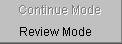 and the Continue
button changes to a Review button.
and the Continue
button changes to a Review button. to review
each question from that point forward.
to review
each question from that point forward. 