Once you have answered a question you can change your answer at any time. There are two ways to do this:
1. Click the PREVIOUS button: This is the most intuitive way to change an answer and works best as you are answering the questions the first time through to create a document. This retraces your steps back through the exact sequence of questions you just answered, regardless of their numerical order. (You can also click Previous on the Questions menu or press Ctrl+Up Arrow.) Note: The Previous button performs essentially the same function as the Back button on your Internet browser.
2. Use the Navigator: As you are answering questions, you can scroll back through the Navigator and click on the question whose answer you want to change. The program will then take you to that question. Change your answer. Then, click the CONTINUE button and the program will take you to the next unanswered question. This method works best once you have completed answering all the questions and have created your document and now want to change and/or review your answers.
Changing An Answer in a Repeat Question
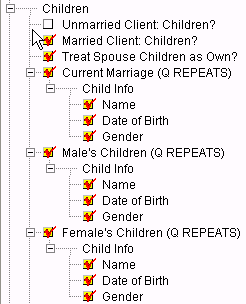
Once you have answered a Repeat question, you might want to go back at a later time to add, modify or delete information. To do this, you first need to locate the Repeat Control Question in the Navigator identified as (Q REPEATS) to the right of the question (See below). Then, click on it and the program will take you to that question.
Once at the Repeat Control Question, click Add, Modify, Delete or Clear All Answers, depending on what you want to do. Once you are done, simply click Continue to move to the next unanswered, relevant question.